If you are building mobile web applications using things like PhoneGap, or jQuery Mobile you will want to take a look at some of the new values for the type attribute in the input tag that are offered by HTML5.
While these tags don't offer much benefit yet in desktop browsers, they do offer a huge benefit in mobile browsers. The different input types can be used to call up different default keyboard layouts on mobile devices such as the iPhone and Android based devices.
input type = email
When you specify type="email" in your input tag, the iPhone displays a keyboard with a small space bar, and includes a @ key.
Here's the code:
<input type="email" name="e" />
Here's a screenshot on iPhone OS 4:
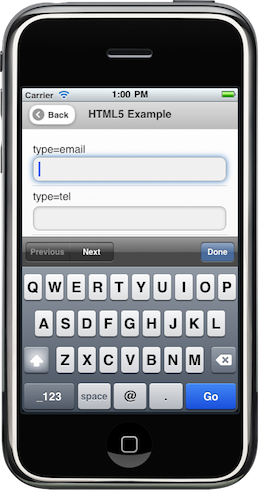
Note that Android 2.2 displays the default keyboard in this case.
input type = number
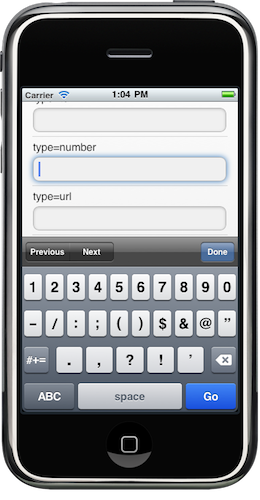
When you want to provide a number input, you can use the HTML5 input type="number" attribute value.
<input type="number" name="n" />
Here is the keyboard that comes up on iPhone 4:
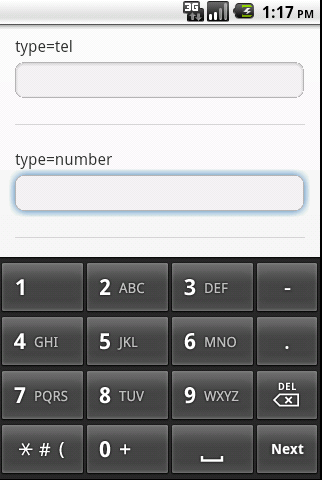
Android 2.2 uses this keyboard for type=number:
input type = tel
For phone numbers you can use the input type="tel" attribute value.
<input type="tel" name="t" />
Here is the keyboard that iPhone displays for this type:
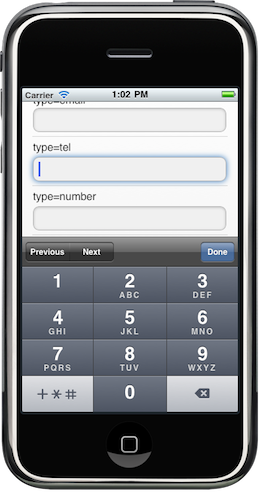
Android displays the same keyboard for type = number as it does for type = tel
input type = url
Finally if you want to have the user enter a url you can specify the input type="url" as follows:
<input type="url" name="u" />
The iPhone removes the space bar, and adds the .com and forward slash keys:
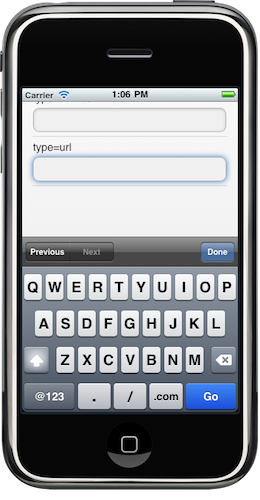
Android displays the default text input keyboard for type=url in version 2.2.
Start using these types now
You can start using these types now to provide a better user experience your mobile visitors. Browsers that do not support HTML5 will treat any unrecognized input type as if it were type="text". In fact if you fetch the type attribute from JavaScript on such an element it will return a value of "text".
Try these examples on your mobile device
Please feel free to post in the comments what keyboard your mobile device uses for them. That example page is using jQuery Mobile for layout.
Comments
Cool stuff Pete. Thanks for bringing this to our attention. By the way, checking "Check Spelling" on your blog produces a popup saying "An error has occurred". -Brian
how we can able to restrict the characters in input type = "password" is there any way to handle it